S3 Explorer walkthrough: zero to browsing in 5 minutes
A step-by-step walkthrough of S3 Explorer against a live S3 endpoint: pick a provider, test, browse buckets, inspect metadata, read request metrics.
Most S3 clients assume you already know your endpoint format, your addressing mode and which fields are optional. S3 Explorer takes the opposite route: you pick your provider from a list, and the connection form configures itself.
This walkthrough shows the whole path — installation to first object — on a real session. The endpoint is a local SeaweedFS gateway (not an AWS account), because that keeps the demo reproducible and free. Nothing changes for AWS, R2, B2 or Wasabi: only the provider tile you click.
Step 1 — Pick a provider
Open the app and hit + Add. Before showing you a single field, it asks which provider you are connecting to.
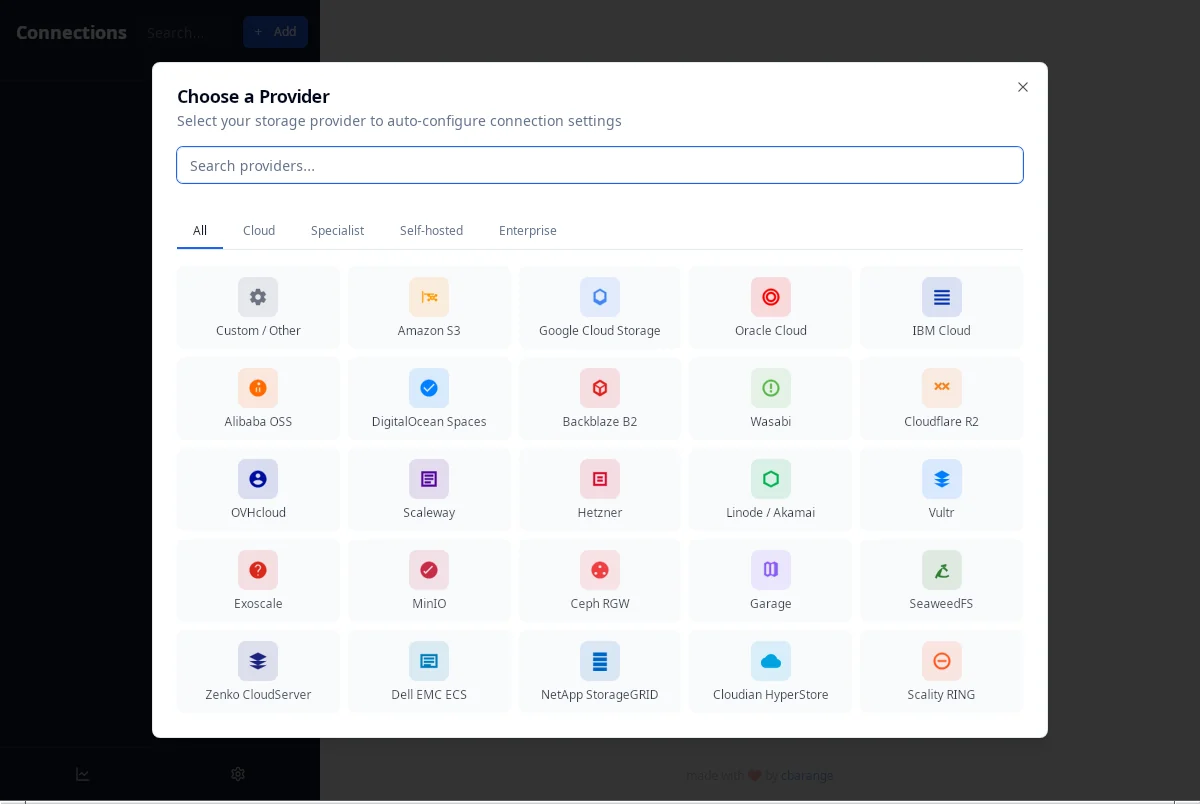
Twenty-five providers ship with the app, grouped into Cloud, Specialist, Self-hosted and Enterprise. The first tile — Custom / Other — is the escape hatch for private endpoints.
Step 2 — The form configures itself
Pick SeaweedFS and the form arrives pre-filled with the endpoint format, the default port and the addressing mode that provider requires.
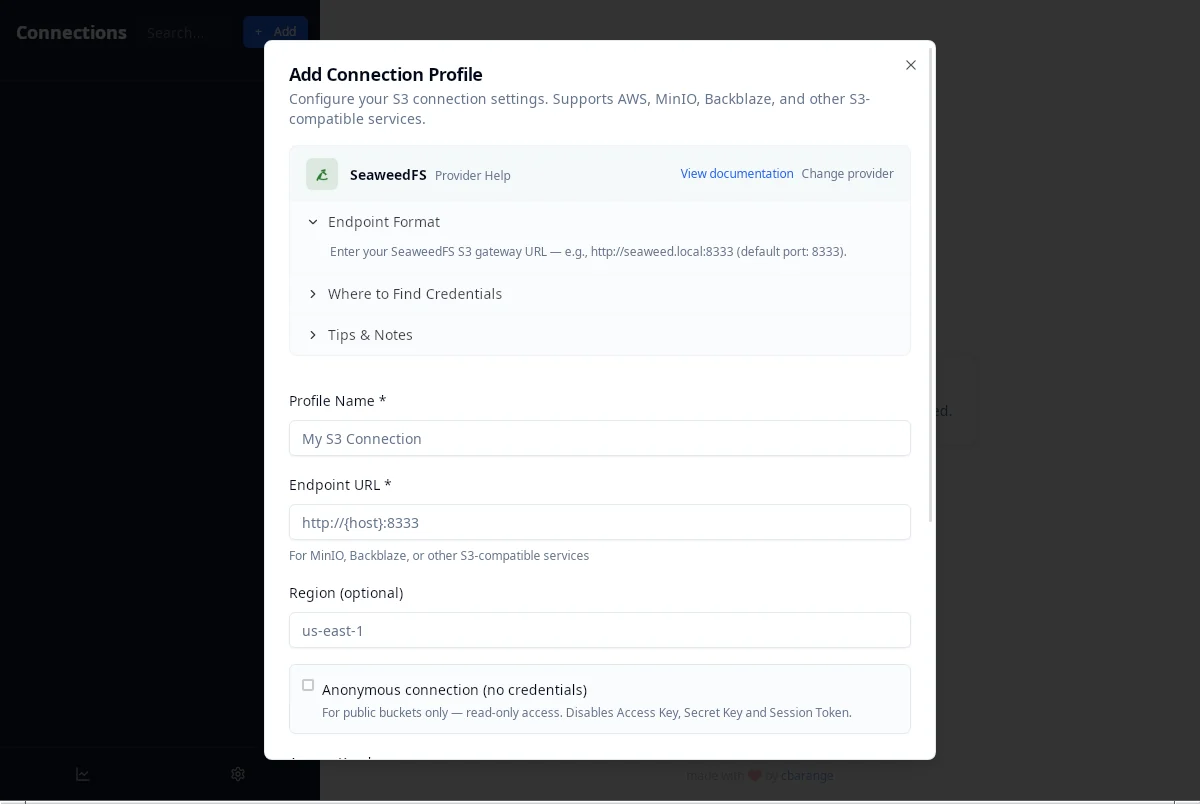
Two details worth noting, because they are where most S3 connections fail:
- Force path-style addressing is already ticked, with the note "required for SeaweedFS". Bucket-in-hostname addressing (
bucket.endpoint) breaks on most self-hosted gateways. - Anonymous connection is a separate, explicit toggle — read-only access for public buckets, no credentials stored.
The provider context also carries documentation: Endpoint Format, Where to Find Credentials and Tips & Notes expand inline, so you don't leave the app to read a wiki.
Step 3 — Test before you save
Test Connection runs the real call — it does not just ping the host.
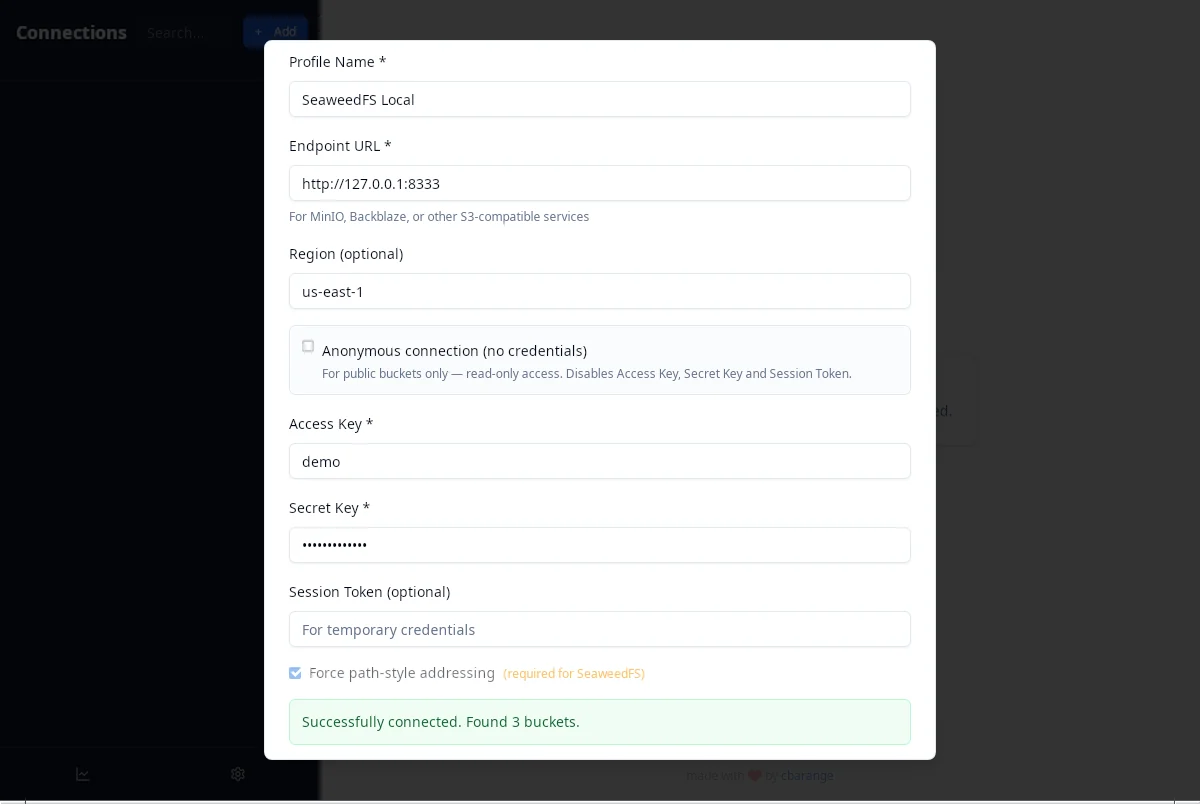
The message tells you what actually happened: "Successfully connected. Found 3 buckets." A wrong key, a wrong region or a blocked ListBuckets call each produce a different failure — and you find out here, not after saving a broken profile.
Step 4 — Buckets land in the sidebar
Save, and the connection shows up on the left with its buckets underneath.
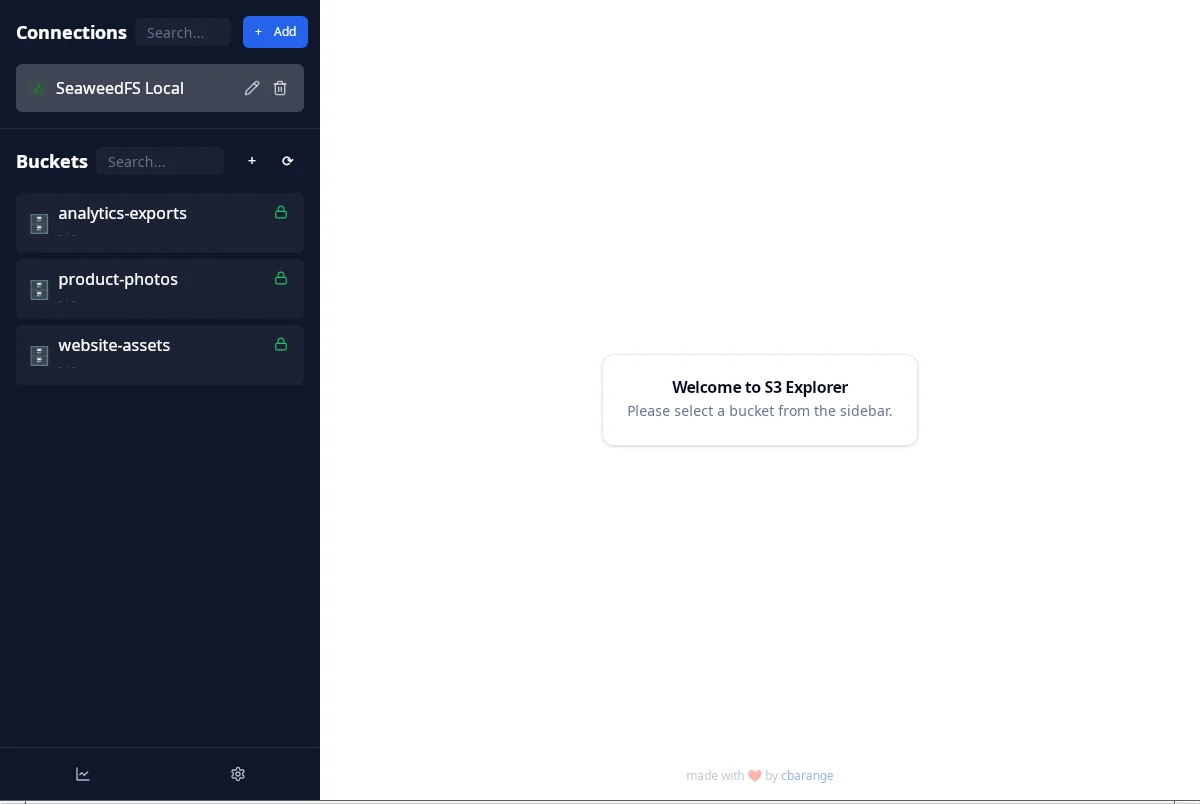
The sidebar keeps connections and buckets in one tree, so switching between two accounts is a click rather than a dialog. Each bucket shows its size and object count once loaded — here 863.85 KB · 18 objects.
Step 5 — Browse
Open a bucket and you get a plain table: name, size, last modified.
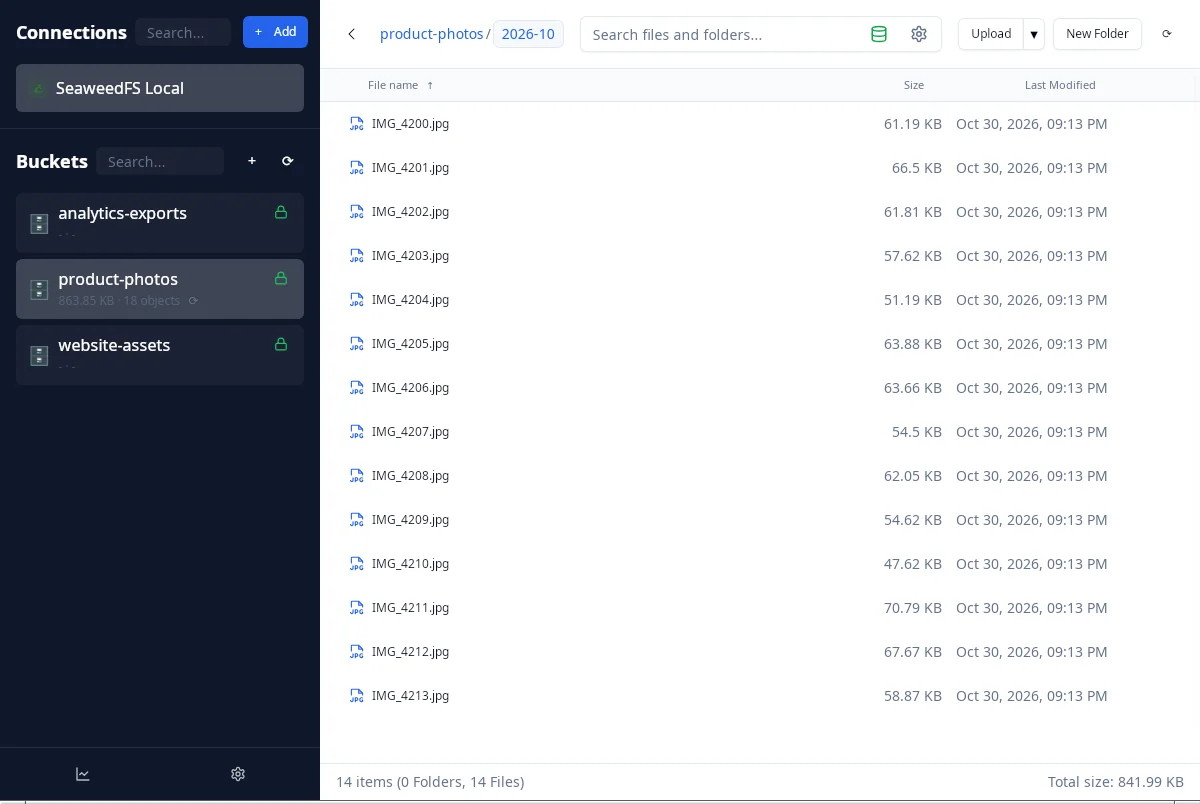
The footer keeps a running total — 14 items (0 Folders, 14 Files) and 841.99 KB — which is the number you actually need when you are deciding whether a prefix is worth moving. Folders are prefixes, and double-clicking opens them like directories, without a re-listing round-trip.
Step 6 — Look inside an object
Double-click a file and it opens in a tabbed viewer.
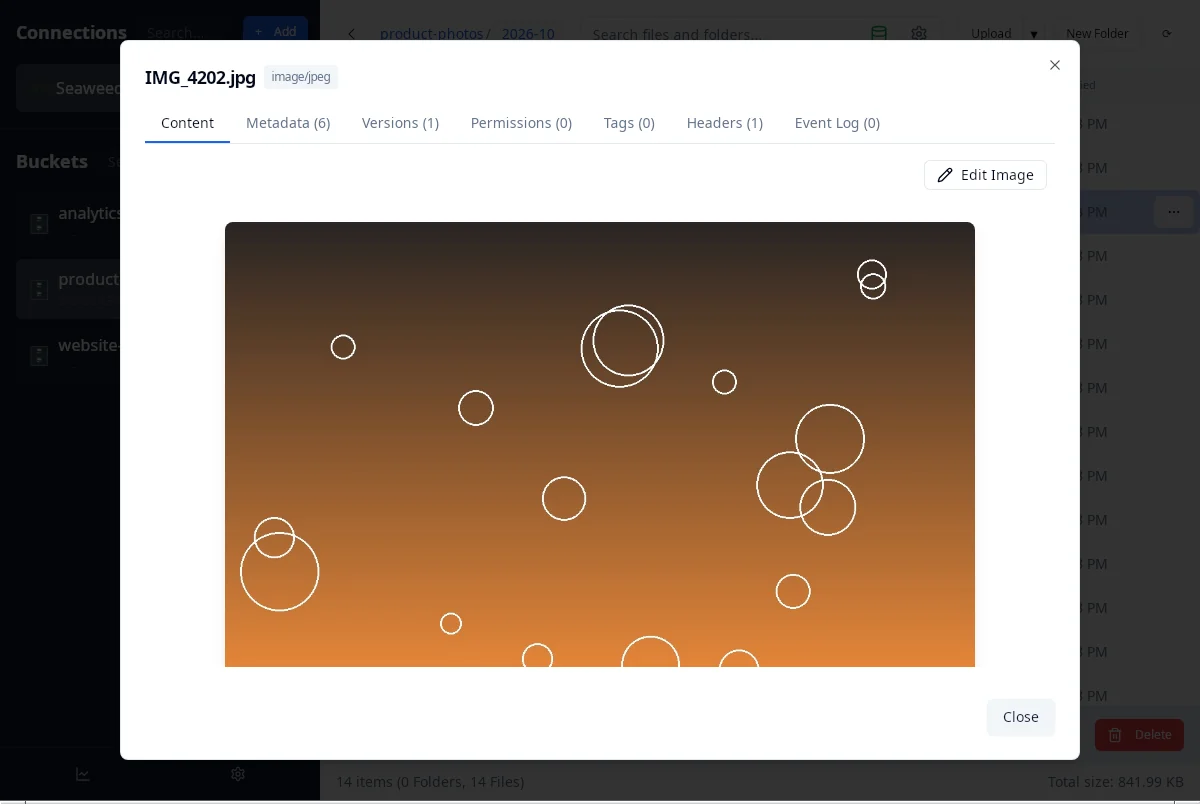
Seven tabs per object: Content, Metadata, Versions, Permissions, Tags, Headers, Event Log. Images preview inline, text is editable, and nothing requires downloading the file first.
Step 7 — Read the metadata
The Metadata tab is the one you end up using at 2am when something is wrong.
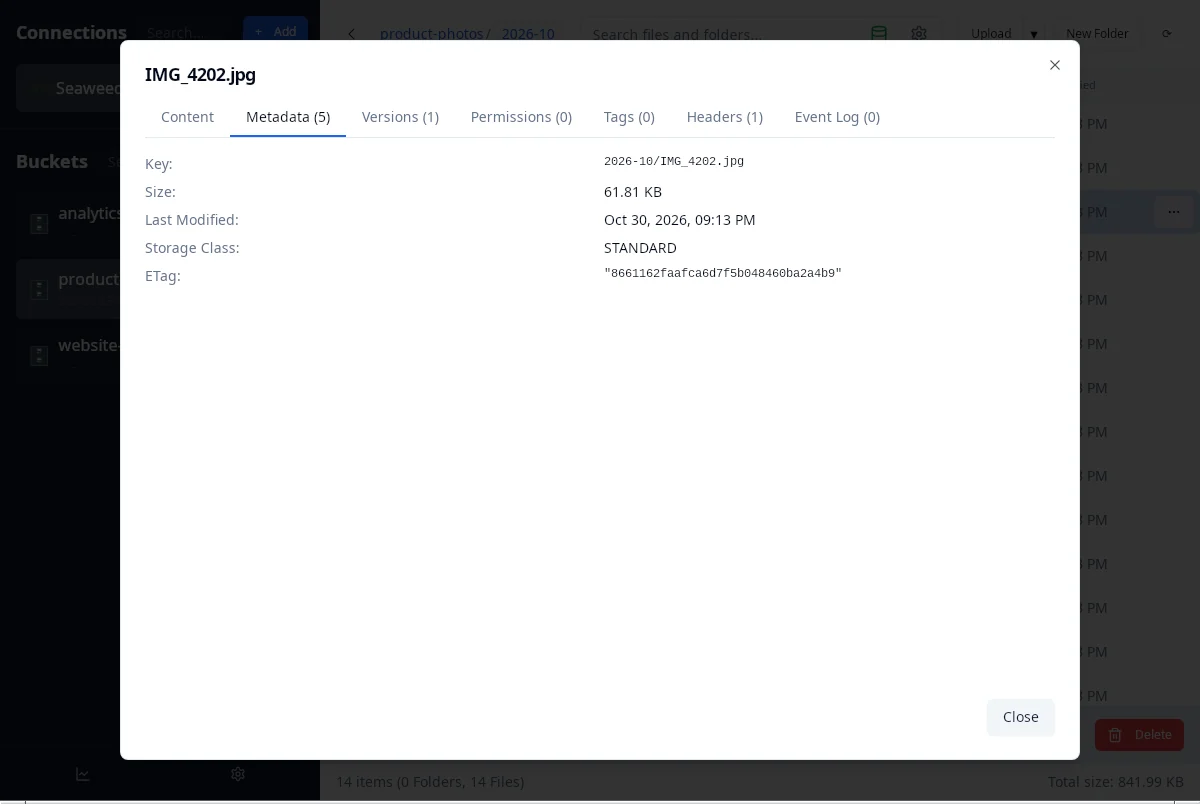
Key, size, last modified, storage class and ETag. That ETag is an MD5 for a single-part upload, which means it doubles as a integrity check: compare it with the local file hash and you know instantly whether the upload was corrupted.
Step 8 — See what the browsing costs
Every request the app makes is recorded locally. The chart icon at the bottom of the sidebar opens the dashboard.
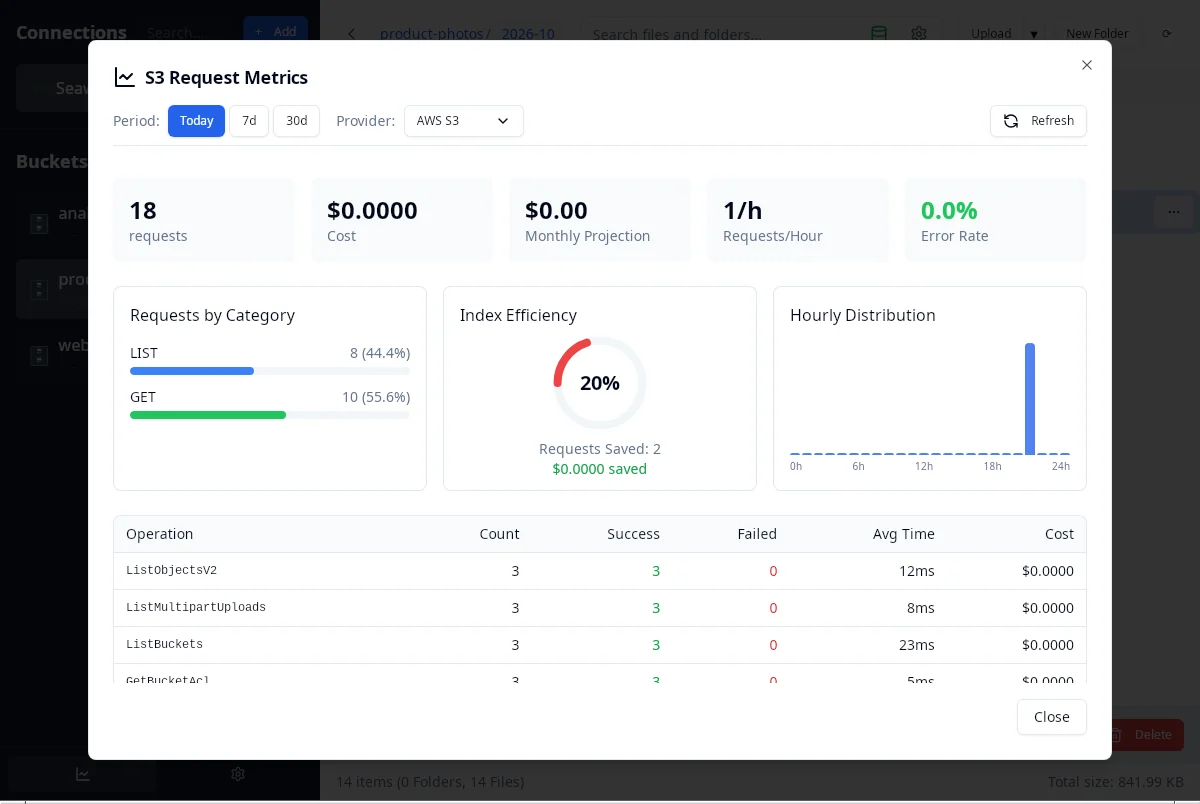
This is the part that changes how you use an S3 client. Browsing a bucket is not free:
- 18 requests for the session above, split 8 LIST / 10 GET.
- Per-operation latency:
ListBuckets23 ms,ListObjectsV212 ms,ListMultipartUploads8 ms,GetBucketAcl5 ms. - Index Efficiency counts the listings the local index answered instead of re-querying the bucket — 2 saved here.
- A cost estimate and a monthly projection, priced from the provider's published request rates.
At 18 requests the money is invisible. At 500,000 a month, the LIST/GET split is your bill — and this is the only client we know of that shows it while you work.
What this walkthrough leaves out
Two honest caveats. This session ran against SeaweedFS on 127.0.0.1, so latency numbers reflect a loopback interface, not the internet. And the demo account holds 30 objects — the index efficiency metric only gets interesting at millions, which is precisely the case it was built for.
Everything else — the presets, the pre-filled form, the test step, the tabs, the metrics — behaves exactly as it would against AWS.
Try it against your own buckets. 25 providers, a read-only key is enough for everything shown above. Download S3 Explorer →